
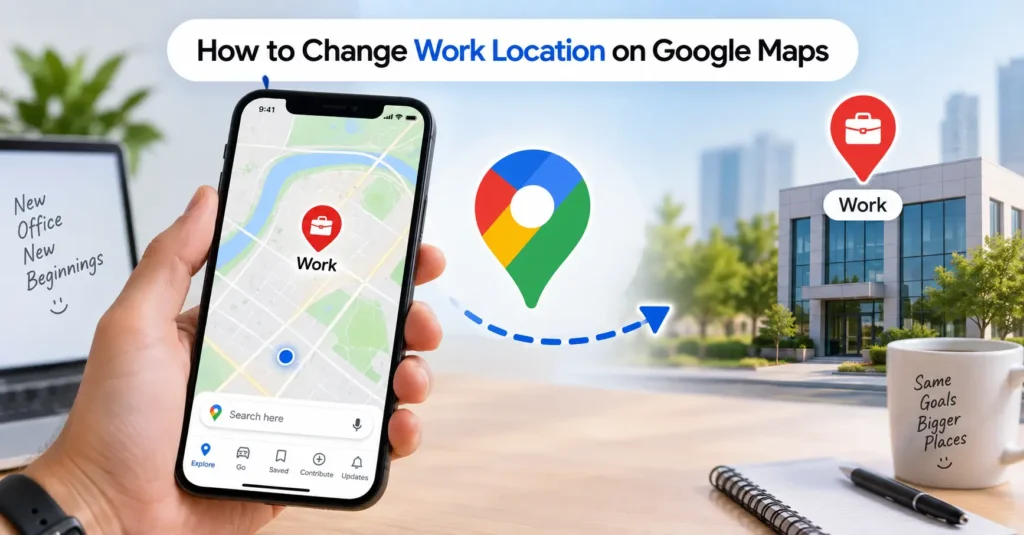
If you moved to a new office, changed jobs, or simply saved the wrong workplace in Google Maps, you can update it in a few minutes. This guide explains how to change work location on Google Maps on Android, iPhone, and computer.
Your saved work address helps Google provide faster directions and more relevant local results.
What Is a Work Location in Google Maps?
A work location is the workplace address saved to your Google Account. Google can use it to make directions, searches, and other services more convenient.
Think of it like giving Google a shortcut to your office. Instead of typing the full address every time, you can simply choose Work.
Quick Reference
| Item | Details |
|---|---|
| Focus keyword | how to change work location on Google Maps |
| Main purpose | Update your saved workplace |
| Where it is stored | Google Account |
| Devices | Android, iPhone, iPad, computer |
| Time needed | Usually a few minutes |
| Can it be removed? | Yes |
| Is it public? | Your saved Home and Work addresses are private to you |
| Useful for | Directions, local searches, commute planning |
Google says Home and Work addresses can personalize results and make it easier to get directions.
Quick Answer: How Do You Change Work Location on Google Maps?
The easiest way is through your Google Account’s Personal info section.
On a computer:
- Sign in to your Google Account.
- Open Personal info.
- Select Work address.
- Enter your new workplace address.
- Select Save.
How to Change Work Location on Google Maps
The steps are slightly different depending on the device you use. The key thing to remember is that your personal Work location is managed through your Google Account.
Change Work Location on a Computer
Using a computer is often the clearest option because all of the Google Account settings are easy to see.
Follow these steps:
- Open your Google Account.
- Sign in to the account connected to Google Maps.
- Select Personal info.
- Find Work address.
- Enter your new work address.
- Select Save.
Google’s current help documentation lists this as the standard way to add or change a Home or Work address.
Example
Suppose you used to work at an office in Austin, Texas, but your company moved to another building across town.
Your old Work address might still appear when you ask Google Maps for directions.
Instead of deleting your Google Account or changing your general location, simply update the Work address.
After saving the new address, Google can use the updated Work location when relevant.
Change Work Location on Android
Android gives you another way to reach the same Google Account setting.
Open your phone’s Settings app and follow these steps:
- Tap Google.
- Tap your profile or select Manage your Google Account.
- Tap Personal info.
- Select Work address.
- Enter your new address.
- Tap Save.
Google’s Android instructions confirm that Home and Work addresses can be changed from the Google Account settings.
Example for a Home Service Customer
Imagine you live in Phoenix, Arizona, and work at a new office in Tempe.
You search Google for:
“plumber near my work”
If your saved Work address still points to your old office, Google may use that saved location when it is relevant to the search.
Updating the Work address helps keep your saved location information current.
Change Work Location on iPhone or iPad
The process is similar on Apple devices.
Google’s current instructions are:
- Open your Google Account.
- Make sure you are using the correct Google Account.
- Open Personal info.
- Tap Work address.
- Enter the new workplace address.
- Tap Save.
You can also remove the saved Work address from the same area.
Check the Google Account First
This small step prevents a common problem.
If you use two or more Google Accounts, make sure you are editing the account that you normally use with Google Maps.
Google notes that different accounts can have different saved places and addresses.
What Happens After You Change Your Work Address?
Changing your Work address does not move your physical location. It changes the saved Work location connected to your Google Account.
Google can use Home and Work addresses to personalize experiences across its services. This can include showing search results near those locations and helping you get directions.
Does Google Maps Use Your Work Address for Local Searches?
Sometimes.
Google uses several signals to estimate where you are and which local results may be useful. These can include your device location, saved Home or Work locations, and other activity.
For example, Google explains that if it believes you are at work, your saved Work address can be used when determining relevant search results.
That means your Work address is one piece of the puzzle. It is not necessarily the only location signal Google uses.
Work Address vs. Current Location
These two things are easy to confuse.
Your Work address is a saved location in your Google Account.
Your current location is based on location information from your device and other available signals.
For example, you may have your office saved as Work in Dubai, while you are currently visiting Abu Dhabi.
Google Maps can still know that you are currently in Abu Dhabi if your device location is available.
USA Home Service Example: Finding a Plumber Near Work
Imagine Sarah works in Dallas, Texas, but recently moved to a different office.
Her old Work address is still saved in Google Maps.
One afternoon, she searches for:
“emergency plumber near me”
Her current device location may be the main signal for the search. But when she searches specifically around her Work location or uses saved places, the old address can become confusing.
Sarah changes her Work address to the new office.
Now her saved workplace information matches her actual work location.
Why This Can Help
A correct Work address can make routine searches easier.
Examples include:
- Plumber near work
- HVAC repair near my office
- Electrician near work
- Locksmith near my workplace
- Car wash near work
- Dry cleaner near work
- Home cleaning service near work
The same idea applies to many local services.
UAE Home Service Example: Moving Offices in Dubai
Now consider Ahmed, who works in Dubai.
His company moved from Deira to Business Bay, but his Google Account still has the old workplace saved.
He may search for services around his workplace during the day, such as:
- AC repair near work
- Plumber near my office
- Electrician near Business Bay
- Cleaning service near my workplace
- Handyman near me
Updating the Work address gives Google the correct saved workplace.
This can be especially useful in cities such as Dubai and Abu Dhabi, where a few kilometers can make a big difference in travel time.
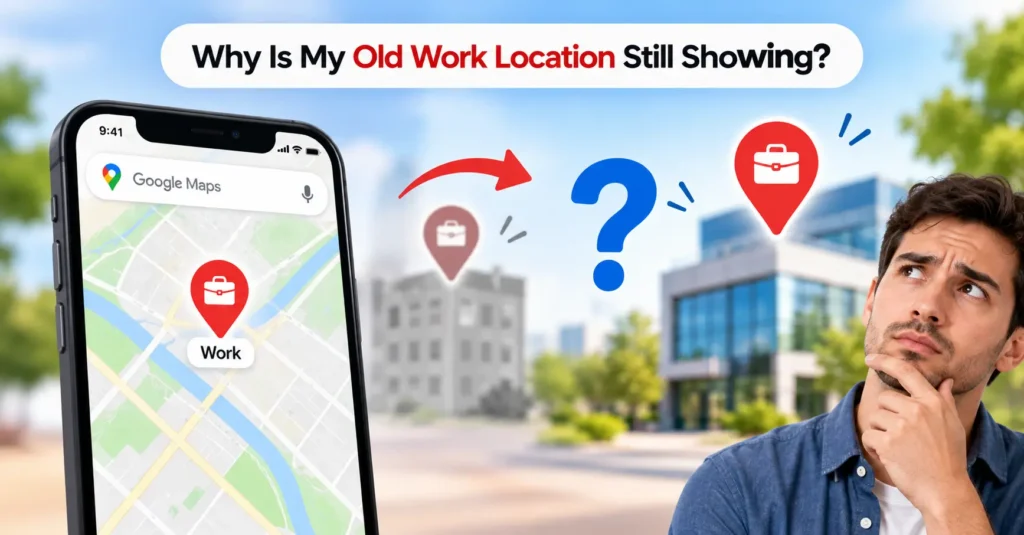
Why Is My Old Work Location Still Showing?
If your old workplace still appears after changing the address, do not panic.
Google uses more than one type of location information.
Check Your Google Account
First, confirm that the new Work address was actually saved.
Go to your Google Account and open Personal info > Work address.
If the old address is still there, replace it and save again.
Check Which Google Account You Are Using
This is one of the most common causes of confusion.
You may have:
- A personal Gmail account
- A work Google Workspace account
- An older Google Account
- A second account used on your phone
Google Maps can have different saved places and settings for different accounts.
Check Your Device Location
Your saved Work address is not the same as your phone’s current location.
If Google is showing results based on your current location, check whether your device location is enabled and whether Google has permission to use it.
Google says Android and other devices can provide location information to Google apps and websites when location settings and permissions allow it.
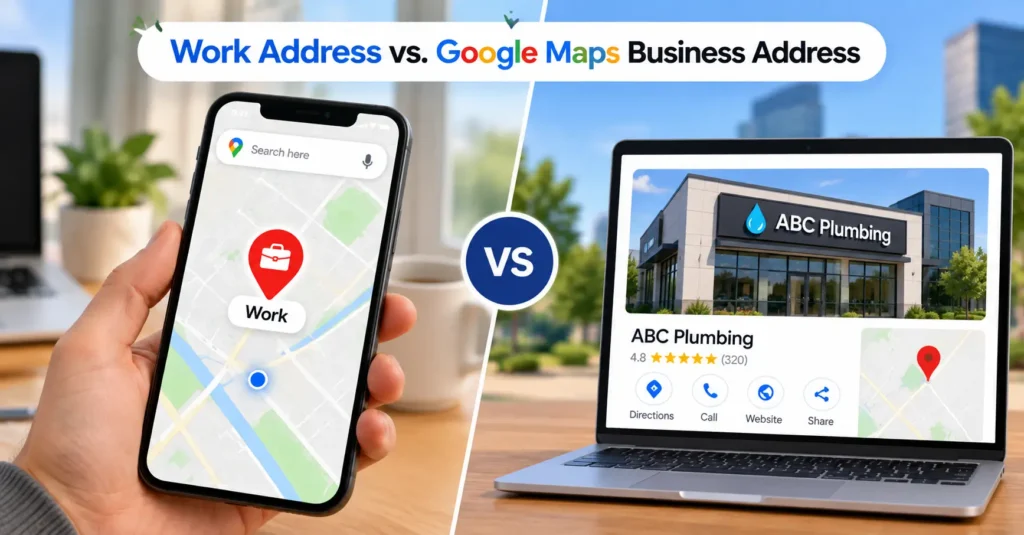
Work Address vs. Google Maps Business Address
This is another common source of mistakes.
Your personal Work address is not the same thing as a business location listed on Google Maps.
Personal Work Address
This is your private saved workplace.
For example:
Work: 1200 Main Street, Dallas, Texas
You manage it through your Google Account.
Business Address
A business address belongs to a business listing on Google Maps and Search.
For example:
ABC Plumbing
A business owner may need to update the business profile if the company moves.
Google provides a separate process for suggesting or editing information about places and businesses in Google Maps.
Why the Difference Matters
Suppose you own a plumbing company in Houston.
Changing your personal Work address does not change your plumbing company’s Google Maps listing.
Likewise, editing your company’s business profile does not automatically change your personal Work address.
They are separate things.
Common Reasons to Change Your Work Location
You may want to change your Work address for several everyday reasons.
You Changed Jobs
Your new employer is in another part of the city.
Update your Work address so your saved workplace matches your new routine.
Your Company Moved
Your employer moved from one office to another.
You can update the saved address instead of creating a new Google Account.
You Work From Home
If your regular workplace has changed to your home, you may prefer to update your Work address accordingly.
Keep in mind that your Home and Work addresses are separate Google Account settings.
You Have a Hybrid Schedule
You may work from home three days a week and visit an office twice a week.
In that situation, your saved Work address can still represent your main workplace. For one-off trips, you can search for another destination directly in Google Maps.
How to Remove an Old Work Location
You do not have to replace your Work address.
You can remove it completely.
Steps to Remove Work Address
On your Google Account:
- Open Personal info.
- Select Work address.
- Choose Remove.
- Confirm the removal if prompted.
Google’s current help page confirms that Home and Work addresses can be removed at any time.
This can be useful if you no longer have a regular workplace.
Common Mistakes to Avoid
Most problems are caused by simple account or location mix-ups.
Mistake 1: Editing the Wrong Google Account
If you have multiple accounts, changing the Work address in one account will not necessarily change it in another.
Always check the profile before making the change.
Mistake 2: Editing a Business Listing
If you are trying to change your personal Work address, do not use Suggest an edit on a business listing.
That feature is intended for place information such as business addresses, hours, phone numbers, websites, and other attributes.
Mistake 3: Confusing Work With Current Location
Changing your Work address does not change where your phone thinks you are.
Your current location and saved Work address serve different purposes.
Mistake 4: Forgetting About Multiple Google Accounts
If the old location keeps coming back, check your other Google Accounts.
This is particularly common when a phone has both personal and work accounts.
A Simple Troubleshooting Checklist
If your new Work address is not showing correctly, run through this list.
- Confirm you edited the correct Google Account.
- Open Personal info.
- Check the saved Work address.
- Make sure the new address is complete.
- Save the change.
- Open Google Maps with the same account.
- Check your device’s location permission.
- Search for the location manually if needed.
- Check whether Google is using your current location instead.
- Make sure you are not trying to edit a business listing.
Google notes that location results can come from several sources, including device location, saved Home or Work addresses, and previous activity.
Expert Tips for Better Google Maps Results
A few small habits can prevent location problems later.
Keep Your Saved Addresses Updated
If you move house or change jobs, update your saved locations.
It is like changing the address on your GPS before starting a long road trip. The small update can save repeated corrections later.
Use Exact Addresses
When possible, use the complete street address rather than a vague description such as “Downtown Dubai.”
A precise address gives Google a clearer destination.
Check Location Permissions
If local search results look strange, check your phone’s location settings.
Google says device location can affect local search results when location access is available.
Don’t Expect One Setting to Control Everything
Google Maps considers different location signals.
Your saved Work address, current device location, searches, and other signals can all play different roles.
Pros and Cons of Saving a Work Address
Saving a Work address can make everyday Google services easier, but it is not necessary for everyone.
| Pros | Cons |
|---|---|
| Faster directions to work | May be confusing if you change jobs often |
| Easier saved-location searches | Can become outdated |
| More relevant local results | Does not replace current device location |
| Convenient for regular commuters | Multiple Google Accounts can cause confusion |
| Easy to update or remove | Different Google services may use location differently |
The main benefit is convenience.
The main downside is simple: an old saved address can cause confusion until you update it.
Frequently Asked Questions
What is the fastest way to change my Work address on Google Maps?
Open your Google Account, go to Personal info, select Work address, enter the new address, and save it. The updated address can then be used across relevant Google services.
Is my Google Maps Work address public?
No. Google says your saved Home and Work addresses are accessible only to you. They are different from a public profile address.
Can I change my Work address from an iPhone?
Yes. On iPhone or iPad, open your Google Account, go to Personal info, select Work address, enter the new address, and save it.
Should I change my Work address if I work from home?
You can. If your home is now your regular workplace, you may choose to use that location as your saved Work address. Home and Work are separate settings in your Google Account.
Why does Google still show my old workplace?
Check that you changed the correct Google Account and saved the new address. Also remember that Google can use current device location and other location signals, so the Work address is not the only factor.
Does changing my Work address change my Google Maps business listing?
No. A personal Work address and a business listing are separate. If a company’s public address is wrong, the business information needs to be updated separately in Google Maps or its business profile.
Key Takeaways
Changing your work location is simple once you know where Google stores the address.
Your saved Home and Work addresses are accessible only to you through your Google Account.
Your Work address is connected to your Google Account.
You can change it when you move offices or change jobs.
The new address can help with directions and local search results.
You do not need to change a business listing just to change your personal Work address.
Final Verdict: Updating Work Location Is Easy
Learning how to change work location on Google Maps is mostly about knowing where Google keeps the setting.
Your personal Work address lives in your Google Account. You can update or remove it from Personal info > Work address. The same basic setting works across Android, iPhone, iPad, and computer.
If your workplace changes from Austin to Dallas, from Phoenix to Tempe, or from Deira to Business Bay, updating the saved address keeps your Google Account information current.
And if Google still shows an unexpected location, remember one simple thing: your saved Work address is only one of several location signals Google may use.
References:
The best sources for this topic are Google’s own support pages:
- Google Maps: Manage your addresses in your Google Account
- Google Account: Add your home and work address
- Google Search: Understand and manage your location
- Google Maps: Edit place information