

If you want to know how to search keywords on a webpage, you do not need expensive SEO software for the basic job. A simple browser shortcut can find a word or phrase in seconds.
For deeper SEO research, you can also inspect the page source, search an entire website with Google, or use Google Search Console to see the queries a page actually appears for.
What Is Keyword Searching on a Webpage?
Keyword searching on a webpage means looking for a specific word or phrase on a web page. You might want to find a service, topic, product, location, or SEO keyword without reading the entire page.
For example, imagine you are checking a home services website in Dallas. You want to know if the page mentions “emergency plumber in Dallas.” Instead of reading 2,000 words, you can search the page for that phrase.
For SEO, the process can go one step further. You can look for keywords in:
- Page content
- Headings
- Page title
- Meta description
- URL
- Image alt text
- Internal links
- Structured data
- HTML source
- Search Console data
Google recommends creating helpful, well-organized content and thinking about the words people may use when searching for a topic. Google also says its language systems can understand related queries without requiring every exact keyword variation to appear on a page.
Why Would You Search for Keywords on a Webpage?
Keyword searching can save you a surprising amount of time.
Think of a webpage like a large toolbox. You know the tool you need is inside, but you do not want to empty the entire box to find it.
The browser’s Find feature lets you go straight to it.
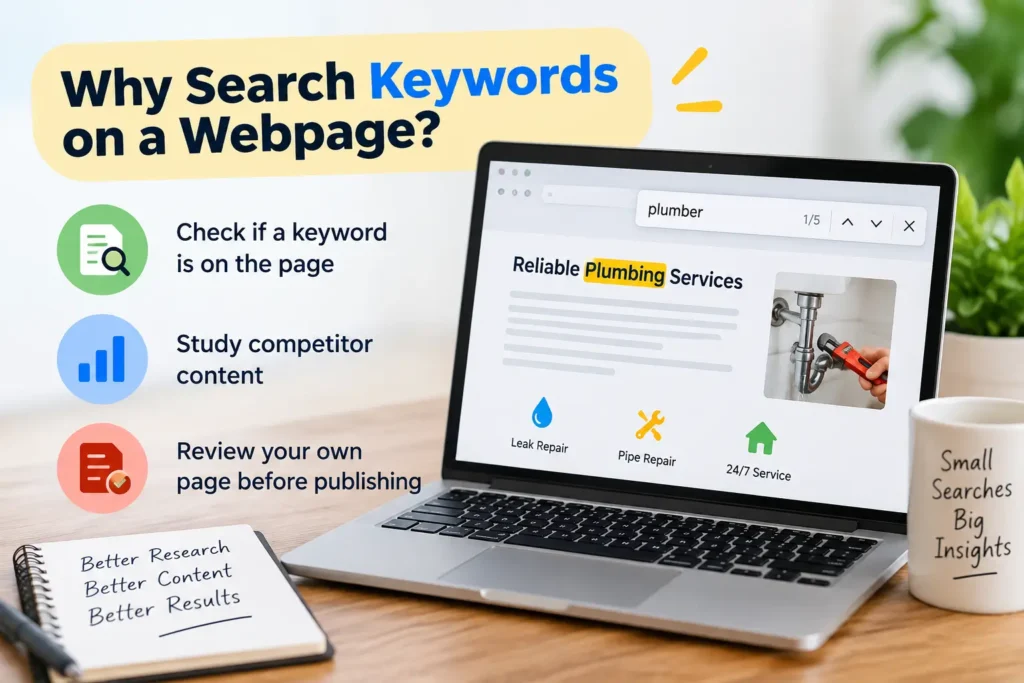
1. Check if a keyword appears on a page
This is the simplest reason.
Suppose a U.S. HVAC company has a page about air conditioning repair. You want to know whether it mentions:
- AC repair
- emergency AC repair
- air conditioner repair
- HVAC repair
- AC service
- same-day AC repair
- AC repair near me
Search each phrase and record the results.
2. Study a competitor’s content
SEO professionals often examine competing pages to understand how they cover a topic.
For example, you may be writing a page for a Dubai plumbing company.
A competing page might mention:
- emergency plumber Dubai
- plumbing repair
- water leak repair
- drain cleaning
- pipe repair
- bathroom plumbing
- commercial plumbing
- 24-hour plumber
Searching these terms helps you understand the page’s topic coverage.
It does not mean you should copy the competitor. Google recommends original, useful, people-first content rather than simply rehashing someone else’s work.
3. Check your own page before publishing
A quick keyword search can catch simple problems.
Maybe your target phrase was supposed to appear in the H1, but it is missing.
Maybe you planned to mention a service such as water heater repair, but the draft only talks about general plumbing.
A two-minute search can expose these gaps.
How to Search Keywords on a Webpage With Ctrl + F
This is the easiest method and works well for most people.
You can use it on a blog post, service page, product page, news article, or almost any normal webpage.
Step 1: Open the webpage
Go to the page you want to check.
For example:
example.com/emergency-plumbing
Step 2: Open Find
On Windows or Linux, press:
Ctrl + F
On Mac, press:
Command + F
A small search box will appear.
Step 3: Enter your keyword
Type the word or phrase you want to find.
For example:
emergency plumber
Your browser will highlight matching results.
Step 4: Check the matches
Look at where the keyword appears.
Is it in:
- The introduction?
- H1?
- H2?
- Main body?
- FAQ?
- Call-to-action?
- Footer?
The location can be more useful than the number alone.
Step 5: Move through the results
Use Enter or the arrow buttons to move from one match to another.
You can quickly see how the phrase is being used throughout the page.
How to Search Keywords on a Webpage on Mobile
You can also search page content from a smartphone.
The exact menu name can vary by browser and device, but the basic process is similar.
On Android
Open the webpage and look for the browser menu.
Then choose an option such as:
Find in page
Type your keyword and move through the matches.
On iPhone
Open the webpage in Safari.
Use the browser’s page search option and enter the word or phrase you want to find.
The key idea is simple: you are asking the browser to look through the current page instead of manually scrolling through it.
This is especially useful when checking a long service page on your phone.

How to Find SEO Keywords in Page Source
Sometimes the keyword is not visible in the normal text.
That is where page source becomes useful.
A webpage contains HTML code. That code can include information such as the title, meta description, headings, links, image attributes, and structured data.
What Is Page Source?
Page source is the original HTML code sent by a website to your browser.
You can inspect it to look for SEO-related information that may not appear as normal text on the screen.
Google explains that the original source and the final rendered page can differ because JavaScript may modify the page after it loads.
How to Search Page Source
On a desktop browser:
- Open the webpage.
- Right-click the page.
- Choose View Page Source.
- Press Ctrl + F on Windows or Command + F on Mac.
- Search for your keyword or HTML element.
You can look for:
<title
<meta name="description"
<h1
<h2
<h3
alt=
rel="canonical"
application/ld+json
A page-source check can reveal information that a normal Ctrl + F search does not show.
Which SEO Elements Should You Check?
When researching a webpage, do not look only at the body copy.
Check the major areas below.
| SEO element | What to look for |
|---|---|
| URL | Main topic or location |
| Title tag | Primary topic and search intent |
| Meta description | Page summary and supporting terms |
| H1 | Main subject of the page |
| H2/H3 headings | Subtopics and keyword variations |
| Body content | Main topical coverage |
| Image alt text | Image descriptions |
| Internal links | Related topics and anchor text |
| Structured data | Entity and page information |
| FAQs | Questions the page addresses |
Google’s Search Essentials recommends using words people would use to look for your content and placing useful descriptive terms in prominent locations such as titles, main headings, alt text, and link text.
Check the Title Tag
The title tag is the HTML title of the page.
For a U.S. plumbing business, it might look like:
Emergency Plumber in Austin, TX | 24/7 Plumbing Repair
You can quickly identify the main service and location.
Check the H1
The H1 normally describes the main subject of the page.
For example:
24/7 Emergency Plumbing Services in Austin
This tells both users and search systems what the page is about.
Check H2 and H3 Headings
Headings reveal the topics covered on the page.
A UAE air conditioning page might contain headings such as:
- AC Repair in Dubai
- Emergency AC Services
- Split AC Repair
- Central AC Maintenance
- AC Installation
- Common AC Problems
- How Much Does AC Repair Cost?
These headings can help you understand the page’s content structure.
How to Search a Whole Website for Keywords
Ctrl + F works on one webpage.
What if you want to search an entire website?
Google’s site: operator can help.
Use Google’s Site Search Operator
Type a search such as:
site:example.com "emergency plumber"This asks Google to return indexed pages from that domain that contain the phrase.
Ahrefs also recommends the site: operator for searching a website for particular words or phrases.
You can make the search more specific.
For example:
site:example.com "AC repair"Or:
site:example.com "water heater repair"Search Specific Page Titles
You can also combine site: with intitle:.
For example:
site:example.com intitle:"plumbing"This can help you identify pages whose titles contain a particular term.

How to Find Keywords a Page Actually Ranks For
There is a big difference between keywords found on a page and keywords that bring the page traffic.
Finding a phrase with Ctrl + F does not prove that Google ranks the page for it.
For your own website, Google Search Console is much more useful for this question.
What Does Google Search Console Show?
Search Console can help website owners understand how their pages perform in Google Search.
Depending on the report and data available, you can examine queries, impressions, clicks, click-through rate, and average position.
Google describes Search Console as a tool for understanding how a website performs on Google Search.
For example, suppose you run a home cleaning company in the UAE.
You may discover that your page receives impressions for:
- house cleaning Dubai
- home cleaning service Dubai
- maid service Dubai
- deep cleaning Dubai
- apartment cleaning Dubai
You may not have intentionally written the page around every phrase.
That is normal.
Google’s systems can understand relationships between different words and search queries.
Keyword Search Example: U.S. Home Services
Let’s say you are researching an HVAC company in Phoenix, Arizona.
You open its AC repair page.
Start with Ctrl + F and search:
AC repair
Then search:
air conditioner repair
Then:
emergency AC repair
Then:
Phoenix
Now look at the headings and context.
You may find:
Emergency AC Repair in Phoenix
Then:
Central Air Conditioner Repair
Then:
Same-Day HVAC Service
The important lesson is that keyword research is not only about finding one exact phrase.
You are trying to understand the topic and search intent.
A homeowner searching for “AC repair near me” may want a local service provider.
Someone searching for “why is my AC blowing warm air” may want information before deciding whether to call a technician.
Those are different search intents.
Keyword Search Example: UAE Home Services
Now imagine you are checking a Dubai home maintenance website.
The page is about plumbing services.
Search for:
- plumber Dubai
- plumbing services Dubai
- emergency plumber
- water leak repair
- drain cleaning
- pipe repair
- bathroom plumbing
- 24-hour plumber
- villa plumbing
- apartment plumbing
You may notice that the page uses both broad and specific terms.
That is useful because real customers do not all search the same way.
Someone in Dubai may search:
plumber near me
Another person may search:
emergency plumber in Dubai
Another may search:
water leakage repair Dubai
The business should make the service clear rather than forcing every phrase into the same paragraph.
How to Find Keywords in Rendered HTML
Sometimes the original HTML does not show everything you see in the browser.
JavaScript can change the page after it loads.
That is why developers sometimes inspect the rendered HTML.
Google’s documentation explains that Chrome’s Inspect feature can show the rendered HTML after scripts have run.
Basic Process
- Open the webpage.
- Right-click and select Inspect.
- Open the Elements panel.
- Press Ctrl + F or Command + F.
- Search for your keyword.
This is more advanced than normal Find in Page.
You usually do not need it for a quick keyword check.
It becomes useful when you are auditing a dynamic website or checking content loaded through JavaScript.
What Ctrl + F Cannot Tell You
This is where many beginners get confused.
Finding a keyword does not tell you everything about SEO.
Ctrl + F can help answer:
“Does this phrase appear here?”
It cannot fully answer:
“Does this page rank for this phrase?”
It also cannot tell you:
- Whether Google indexed the page
- Whether the page gets organic traffic
- Which queries generate impressions
- How competitive the keyword is
- Whether users find the page helpful
- Whether the keyword matches search intent
- How the page compares with every competitor
Google explains that search ranking and visibility involve many signals, and there is no simple trick that guarantees a particular position in Google Search.
Should You Count Keyword Density?
Keyword frequency can be useful as a basic observation.
But do not treat keyword density as a target you must hit.
For example, suppose a 1,500-word plumbing page repeats:
“best plumber Dubai”
50 times.
That does not automatically make it better.
In fact, the writing could become awkward and annoying.
A better approach is to cover the topic naturally.
Use related terms such as:
- plumbing repair
- leak detection
- drain cleaning
- pipe repair
- emergency plumbing
- water heater service
- bathroom plumbing
- commercial plumbing
Google says its language systems can understand how a page relates to queries even when the exact wording does not appear everywhere.
How to Use Keywords Without Stuffing Them
A good webpage should sound like it was written for a person.
Imagine a homeowner reading the page at 10 p.m. because their water heater has stopped working.
They do not want a paragraph that says:
“Water heater repair is our water heater repair service for water heater repair needs.”
They want a clear answer.
For example:
“Our technicians repair common water heater problems, including leaks, faulty thermostats, and heating issues. Emergency appointments are available in selected areas.”
That is easier to read and still communicates the service clearly.
A Simple Keyword Checklist
Before publishing a page, ask:
- Does the page clearly explain its main topic?
- Is the main keyword naturally included?
- Does the H1 describe the page?
- Do headings cover useful subtopics?
- Are related terms used naturally?
- Does the content answer the customer’s question?
- Is the location clear when local service matters?
- Are internal links useful?
- Are image descriptions accurate?
- Is the page easy to read?
Common Mistakes When Searching Keywords
A few mistakes appear again and again.
Mistake 1: Searching Only One Keyword
A single phrase rarely tells the whole story.
If you are researching a cleaning company, check related terms such as:
- house cleaning
- deep cleaning
- move-out cleaning
- apartment cleaning
- office cleaning
- residential cleaning
Mistake 2: Assuming More Mentions Are Better
They are not.
A useful page can rank for relevant searches without repeating the same phrase dozens of times.
Mistake 3: Ignoring Search Intent
“How to fix a leaking faucet” is different from “emergency plumber near me.”
One is mainly informational.
The other is strongly service-focused.
Mistake 4: Confusing Presence With Rankings
A keyword appearing on a page does not mean the page ranks for that keyword.
Use Search Console or an SEO platform when you need ranking and performance data.
Mistake 5: Forgetting Local Terms
For home services, location often matters.
Compare:
plumber
with:
plumber in Houston
or:
plumber in Dubai
The local version gives stronger geographic context.
Google notes that location can influence the search results a user sees.
A Simple Keyword Research Workflow
You can use this workflow for almost any webpage.
Step 1: Start With Ctrl + F
Search the primary keyword.
Record whether it appears and where.
Step 2: Search Related Keywords
Try synonyms, variations, services, questions, and location terms.
Step 3: Check Headings
Look at the H1, H2, and H3 headings.
Ask what topics the page covers.
Step 4: Check the Page Source
Look at the title, meta description, image alt attributes, canonical URL, and structured data.
Step 5: Search the Website
Use Google’s site: operator to see how the website uses the keyword across multiple pages.
Step 6: Check Search Console
If it is your website, check the queries that generate impressions and clicks.
Step 7: Compare Search Intent
Ask what someone searching each phrase actually wants.
Step 8: Improve the Page
Add missing information where it helps the reader.
Do not add keywords just for the sake of adding them.
Pros and Cons of Each Method
| Method | Best for | Main advantage | Limitation |
|---|---|---|---|
| Ctrl + F | One webpage | Very fast | Limited to searchable page content |
| Mobile Find | Phone research | Easy on the go | Smaller screen |
| Page Source | SEO auditing | Shows HTML elements | More technical |
| Inspect | Dynamic pages | Shows rendered HTML | Requires basic technical knowledge |
Google site: | Multiple pages | Searches a whole domain | Depends on Google’s indexed pages |
| Search Console | Your own website | Shows search performance | Only available for sites you can access |
| SEO tools | Competitor research | More keyword and ranking data | Often requires paid plans |
Expert Tips for Faster Keyword Research
A few small habits can make this process much faster.
Search Short Phrases First
Start with:
plumber
Then move to:
emergency plumber
Then:
emergency plumber Dubai
This lets you move from broad to specific terms.
Search Questions Too
Do not only search commercial phrases.
Try questions such as:
- How much does AC repair cost?
- How long does water heater repair take?
- Why is my drain clogged?
- How often should AC maintenance be done?
These questions can reveal content gaps.
Look at Context
Do not simply record:
“AC repair: 14 mentions.”
Ask where those mentions occur.
Are they in useful headings?
Are they natural sentences?
Are they part of a location page?
Are they inside navigation or the footer?
Context matters.
Keep a Simple Keyword Sheet
For larger projects, create columns such as:
| Keyword | Found? | Location | Intent | Notes |
|---|---|---|---|---|
| AC repair | Yes | H1/body | Commercial | Main service |
| emergency AC repair | Yes | H2 | Transactional | Strong service intent |
| AC maintenance | Yes | H3 | Commercial | Related service |
| AC troubleshooting | No | — | Informational | Possible content gap |
This makes competitor research much easier to compare.
Frequently Asked Questions
What is the fastest way to search a keyword on a webpage?
Press Ctrl + F on Windows or Command + F on Mac. Type the keyword into the Find box, and the browser will highlight matching results on the current page.
Is Ctrl + F useful for SEO keyword research?
Yes. It is useful for quickly checking whether a keyword appears in visible page content. However, it does not show complete ranking or traffic data.
Can I search keywords on a webpage from my phone?
Yes. Most modern mobile browsers provide a Find in Page feature. Open the browser menu, choose the page-search option, and enter the word or phrase.
Should I search the page source for keywords?
You should search the page source when you need to inspect HTML elements such as the title, meta description, headings, image attributes, canonical URL, or structured data.
Does finding a keyword mean the webpage ranks for it?
No. A keyword appearing on a page does not prove that Google ranks that page for the term. For your own website, Google Search Console provides performance data about search queries and pages.
Key Takeaways
Here are the main points to remember.
- Ctrl + F is the quickest way to find a keyword on a webpage.
- Command + F performs the same job on Mac.
- Mobile browsers usually have a Find in Page option.
- Page source can reveal HTML elements that normal page search may not show.
- Google
site:searches can help you find keywords across an entire website. - Google Search Console can show queries for which your own pages receive Google Search impressions.
- A keyword appearing on a page does not automatically mean the page ranks for that keyword.
- Good SEO is about useful content and clear language, not repeating a keyword again and again.
Final Verdict: Search Keywords Without Overcomplicating SEO
Learning how to search keywords on a webpage starts with one simple shortcut: Ctrl + F or Command + F.
That is enough when you only need to find a word or phrase.
For serious SEO research, go further. Check headings, page source, internal links, structured data, Google site: searches, and Search Console data. Then look at the meaning behind the keywords.
For a home services business, that context matters. A customer searching “emergency plumber Houston” has a different need from someone searching “how to fix a leaking faucet.” A Dubai homeowner searching “AC repair Dubai” may be ready to contact a technician, while someone searching “why is my AC not cooling” may still be researching the problem.
The goal is not to find the keyword and repeat it everywhere.
The goal is to understand what the page is about, what people are searching for, and whether the content gives them a useful answer.
References:
- Google Search Central SEO Documentation
- Google SEO Starter Guide
- Google Search Essentials
- Google Search Console rendered-page documentation
- Mozilla Firefox Find in Page Help